Disclaimer: This text is highly AI generated
Keeping SSL/TLS certificates updated for a GlobalProtect portal is one of those tasks that sounds simple until you account for validation, firewall policy, certificate import, profile updates, and commits. This project automates that entire workflow with a single Python script.
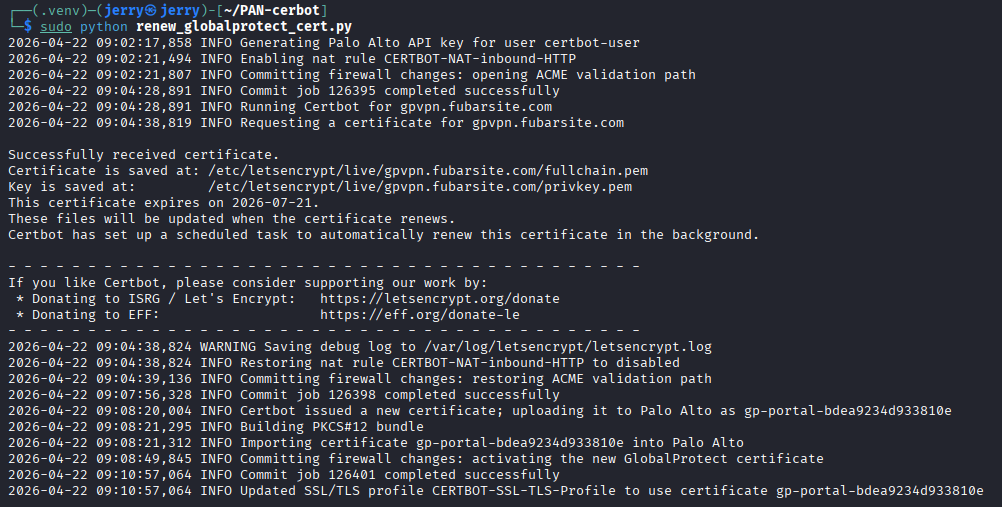
Get it here: https://github.com/skadevare/PaloAlto-Letsencrypt-Certificate-Auto-Updater
Details
The script is designed for Palo Alto firewalls and handles both automated Let’s Encrypt renewal and manual certificate import. Its main purpose is to keep a GlobalProtect SSL/TLS Service Profile updated with the correct certificate without requiring repeated manual work every few months.
What Problem This Solves
A GlobalProtect portal needs a valid public certificate. If that certificate expires, users will see certificate warnings or lose trust in the portal entirely. Renewing the certificate manually every time is tedious and error-prone.
This script automates the full lifecycle:
- opening HTTP access temporarily for ACME validation
- running Certbot
- closing the temporary firewall access
- importing the new certificate into PAN-OS
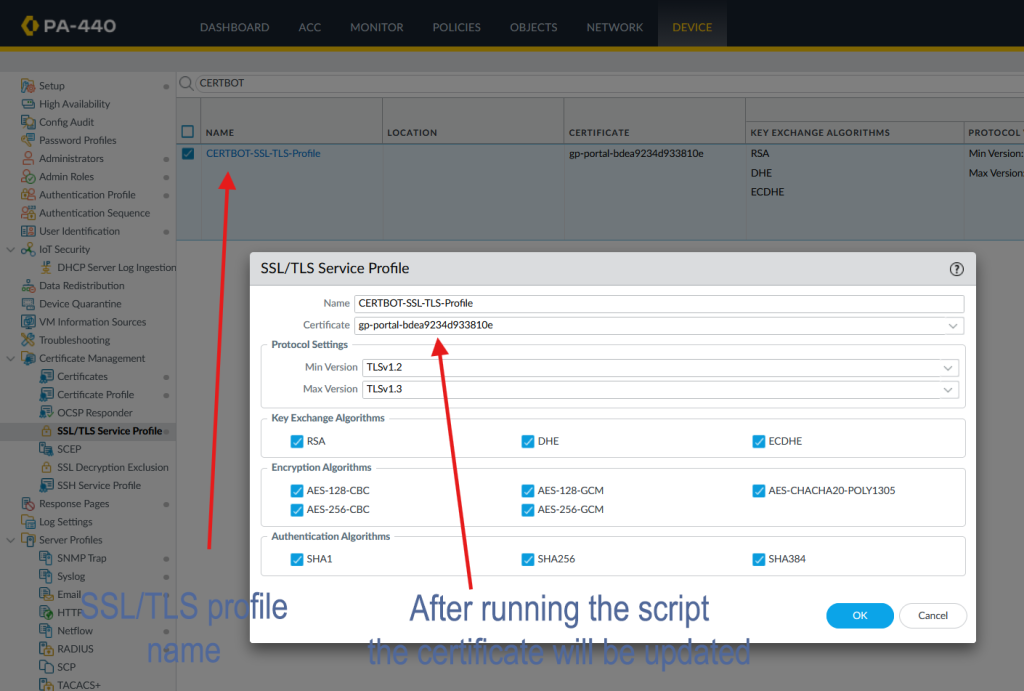
- updating the SSL/TLS Service Profile
- committing the configuration
It also supports a manual mode for cases where you already have a certificate and private key and only want to push them to the firewall.
How the Automated Mode Works
In normal mode, the script performs the following steps:
- It connects to the Palo Alto firewall API.
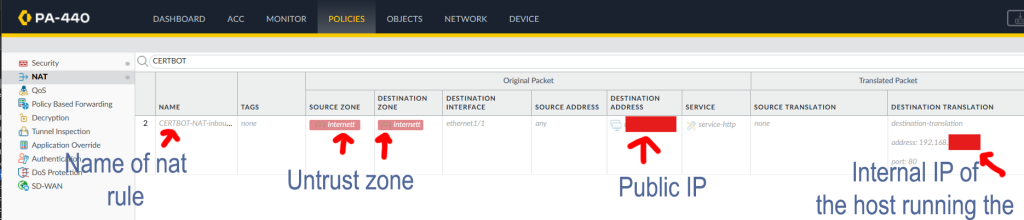
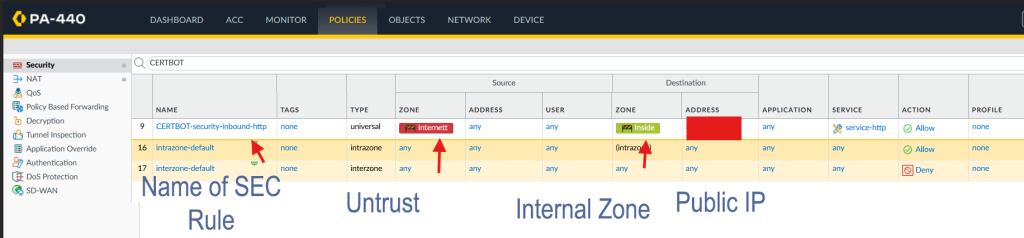
- It checks the current state of a predefined NAT rule and an optional predefined security rule.
- If those rules are disabled, it enables them.
- It commits the firewall configuration so inbound TCP port 80 is reachable.
- It runs Certbot in standalone mode.
- Certbot temporarily hosts the HTTP-01 validation response on the local machine.
- After validation, the script restores the original rule state and commits again.
- It builds a temporary PKCS#12 bundle from the certificate and private key.
- It uploads that bundle to the firewall.
- It updates the configured SSL/TLS Service Profile to use the matching certificate object.
- It commits the change.
This gives you a repeatable certificate renewal process with minimal manual intervention.
Why It Uses Existing Firewall Rules
The script does not try to create NAT or security rules from scratch. Instead, it toggles rules that already exist on the firewall.
That is intentional.
NAT and security rules depend on details that are different in every environment, such as:
- interface names
- zones
- public IP addresses
- translated addresses
- existing policy structure
Because of that, the safer design is to create the required rules once in PAN-OS, keep them disabled, and let the script enable and disable them only when needed.
Security Rule Handling
If a security rule is configured, the script handles it just like the NAT rule.
That means: - if the security rule is disabled, it gets enabled before Certbot validation
- after validation, it is disabled again
- if it was already enabled, the script leaves it enabled
This makes the workflow cleaner and avoids leaving temporary access open longer than necessary.
Manual Certificate Import Mode
- The script also supports a manual import mode.
This is useful when: - you already received a certificate from another source
- you want to test certificate import without running Certbot
- you want to update the GlobalProtect profile directly from a certificate and key file
Example command:
python3 renew_globalprotect_cert.py –manual-cert –incert /path/to/fullchain.pem –inkey /path/to/privkey.pem
In manual mode, the script: - skips Certbot entirely
- does not touch NAT or security rules
- builds the PKCS#12 file
- uploads it to the firewall
- updates the SSL/TLS profile
- commits the change
How Certificate Naming Works
The script derives the PAN-OS certificate object name from the certificate fingerprint.
That gives two benefits:
the same local certificate can be reused cleanly
the script can avoid creating unnecessary duplicate certificate objects
If the firewall already has the matching certificate object and the SSL/TLS profile already points to it, the script skips the update.
Scheduling
Manual mode works best with real certificate files or proper Let’s Encrypt paths.
The intended use case is periodic execution through systemd, for example every three months.
A quarterly timer matches the original renewal idea, but in practice monthly execution is safer for 90-day Let’s Encrypt certificates. Certbot usually does nothing until a renewal is actually needed, so running more often reduces the risk of missing the renewal window.
Important Operational Notes
A few things matter in production:
The script performs full PAN-OS commits.
If unrelated candidate changes already exist on the firewall, those should be considered before running it.
Final Thoughts
This script turns certificate renewal for a Palo Alto GlobalProtect portal into a predictable workflow instead of a manual maintenance task. It reduces the chance of expired certificates, keeps the firewall changes temporary, and makes it easier to manage both automatic and manual certificate updates from one place.
If you manage GlobalProtect in an environment where certificate rotation has been a recurring headache, this kind of automation can remove a lot of unnecessary operational friction